|
1. Attach a
terminal (or a notebook configured for ěHyper Terminal"
operation) to your CiscoŽ router.
2.Power-up the
router and wait for the ěRouter (boot)>" prompt
to be displayed on the CRT.
3. With the
Kingston logo facing up, insert your flash card into the routerís
Slot0 or Slot1 flash expansion slot.
4.From the ěRouter
(boot)>" prompt, type show flash and press Enter .
5. An unformatted
card will display the following error: "Open device Slot0 (or
Slot1) failed (Bad device Info Block)"
6. To begin
the format process, type enable and press Enter , which places you
in supervisor mode and will display the "#" prompt.
7. From the
"#" prompt, type format slot0: and press Enter . The program
will display the following prompt: All sectors will be erased (y/n)?
Type "Y" and press Enter . The formatting process will
begin, starting with the highest sector number counting
down to 0.
8. Once the
format process is complete, the program will prompt you to enter
a "Volume ID," which can be up to 31 characters. This
is optional; you can enter a volume ID or leave the field blank
and press Enter .
9. To verify
the card has been properly formatted, type show flash and press
Enter . If the card is formatted properly, its capacity will be
displayed. For example, an 8MB card will display the following:
"7995392 bytes available (0 bytes used)"
10. Your Kingston
flash card is now ready for use and can be loaded with the appropriate
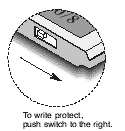
data. If desired, the flash storage card can be write-protected
by sliding the switch to the right as shown in the illustration.
|